
Widget Options now includes an enhanced Display Logic system with refined role-based restrictions. Administrators have full control over creating and managing logic rules, while non-administrator users can only apply administrator-defined presets. This update ensures improved security and consistent management of widget visibility.
Where is the New Display Logic Feature? #
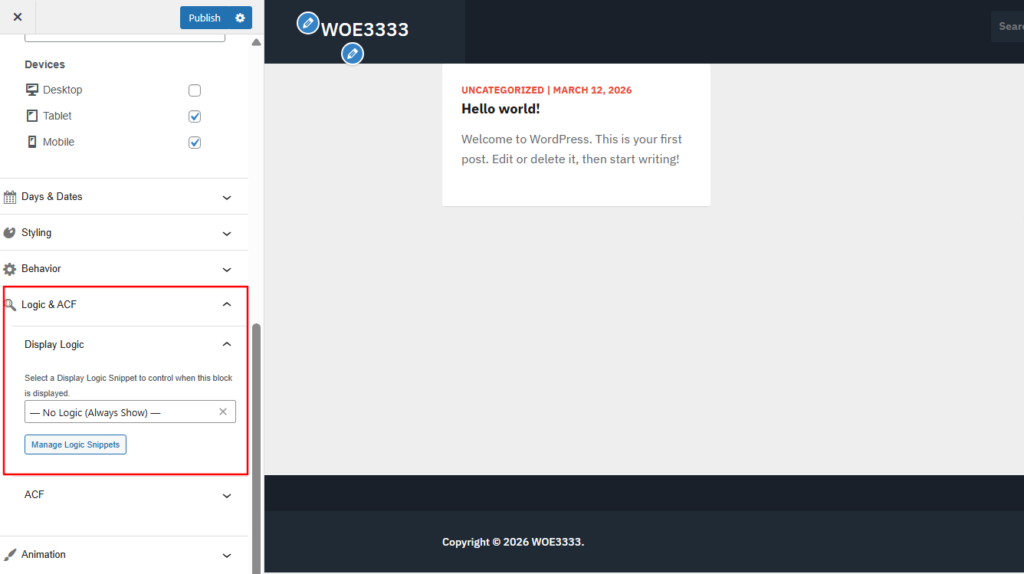
The Widget Options Logic is still located in the same section of the widget settings as in earlier versions. Users can access it by opening a widget and navigating to the Display Logic panel within the Widget Options settings.
Block Widget Editor

Classic Widget Editor
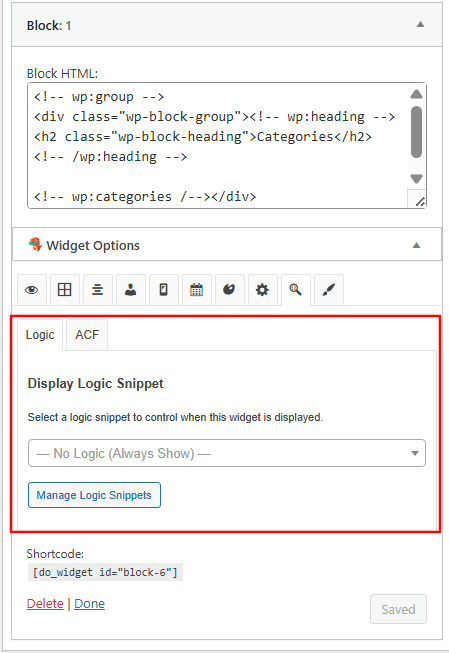
WP Customizer
How to Add a Snippet to the New Display Logic Feature #
As an administrator, navigate to your WordPress Dashboard >> Settings >> Widget Options >> Display Logic. Make sure that the Display Logic is enabled.
To add a snippet, click Manage Snippet or go to Settings >> Widget Options Snippets.
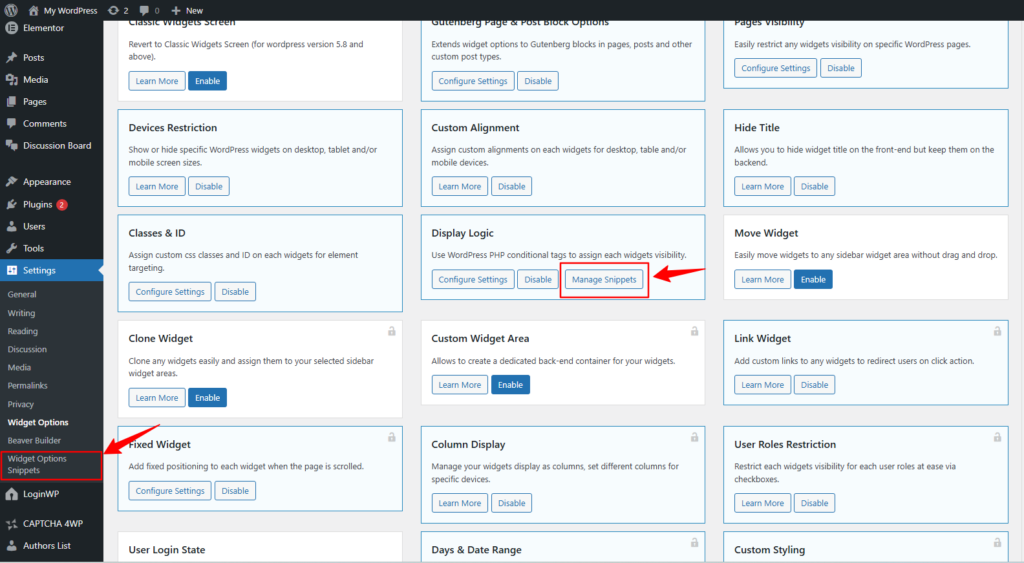
Then, click Add new Snippet. You’ll then be redirected to the Widget Options Snippet creation page.
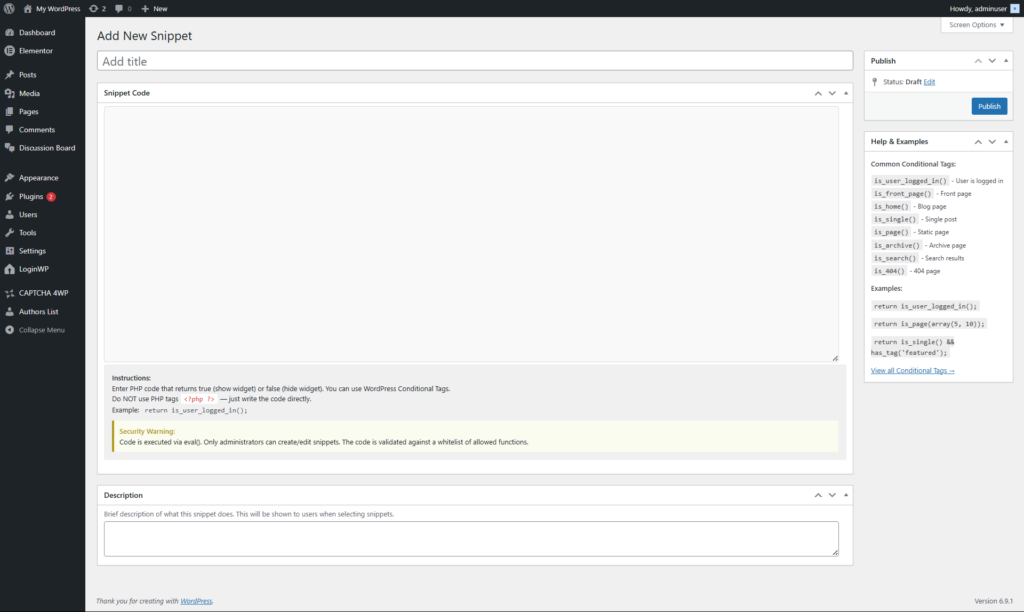
Add your preferred snippet and hit Publish when you’re done. After adding snippets, the page snippets page should look like this:

How to Apply a Created Snippet to the New Display Logic Feature #
Go to your preferred Widget Customizer (Block Widget, Classic, WP customizer) and select a widget you prefer.
Go to the Logic Tab and Find the Logic Tab.
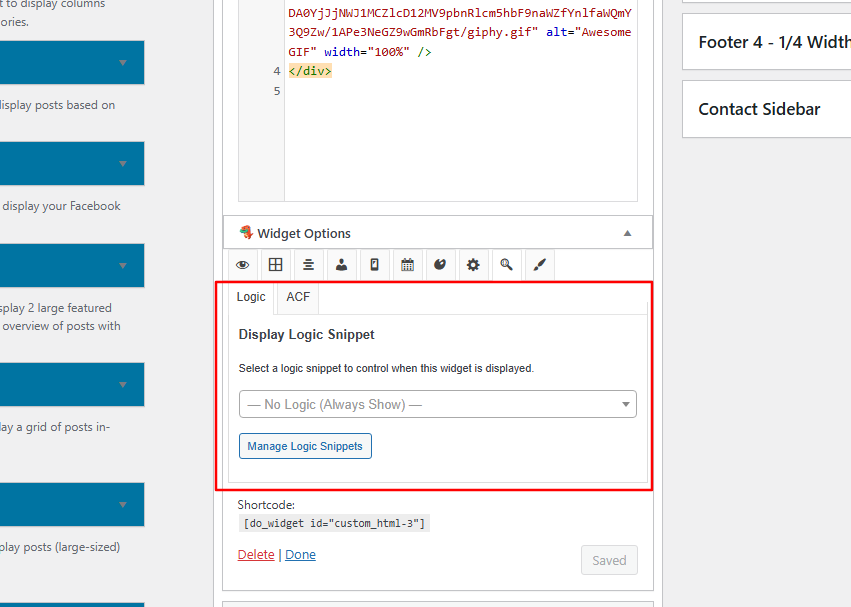
Now select the Dropdown option and select the snippet you created and preferred.

Then hit Save or Publish.
What happens to your Previous Widget Logic Code after updating to version 4.2/5.3.0? #
Your existing widget logic code will be migrated to the new Widget Options Snippet system after updating to version 4.2/5.3.0. All current logic conditions will be converted into Logic Snippets, ensuring that your widgets continue to function exactly as they did before the update without requiring any manual changes.

A migration notice will appear in your WordPress dashboard to inform you about the display logic migration. This notice will allow you to review the detected logic codes and choose which ones you would like to migrate.
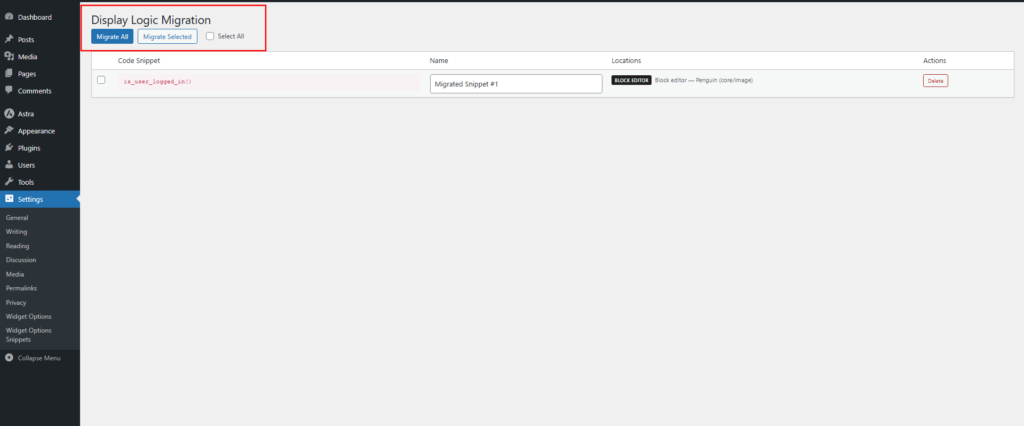
Your previous widget display logic that is not selected in the migration process will be labeled as Legacy Code, representing the logic that existed in your widgets before updating to version 4.2/5.3.0. You can clear this by clicking Clear Legacy Logic to apply a new Widget Logic Snippet.

If you need to add new logic or modify the migrated logic, you will now manage it from the Widget Options Snippet page. This new system provides a more consistent, centralized, and secure way to manage display logic moving forward while preserving the existing behavior of your widgets.
What causes the changes to the Display Logic? #
These improvements were introduced to reduce potential vulnerabilities and improve how logic conditions are handled. The logic is now managed through a dedicated Snippet system, which provides a more secure way to store and process conditions. This approach allows Widget Options to better validate, sanitize, and manage logic while keeping behavior consistent across the plugin.
The new snippet-based approach ensures:
> A more secure handling of custom conditions
> Better compatibility with modern WordPress standards
> Reduced risk of code injection or unintended behavior
> A centralized location to manage, update, and review all display rules
Overall, this change enhances both the security and reliability of Display Logic while maintaining the flexibility you’re used to.
If you’re experiencing any issues with the new Widget Options Display Logic system, please feel free to reach out to us: #
- Email Support: https://widget-options.com/contact/
- WordPress Support Forum: https://wordpress.org/support/plugin/widget-options/
Our team will be happy to assist you.