
Starting Widget Options v4.0.0 and Widget Options Extended v5.1.0, Widget Options has become a Gutenberg block-enabled plugin. You completely manage and control their visibility, appearance, and behavior in the Block Widget Editor and even with pages, posts, and other custom post types.
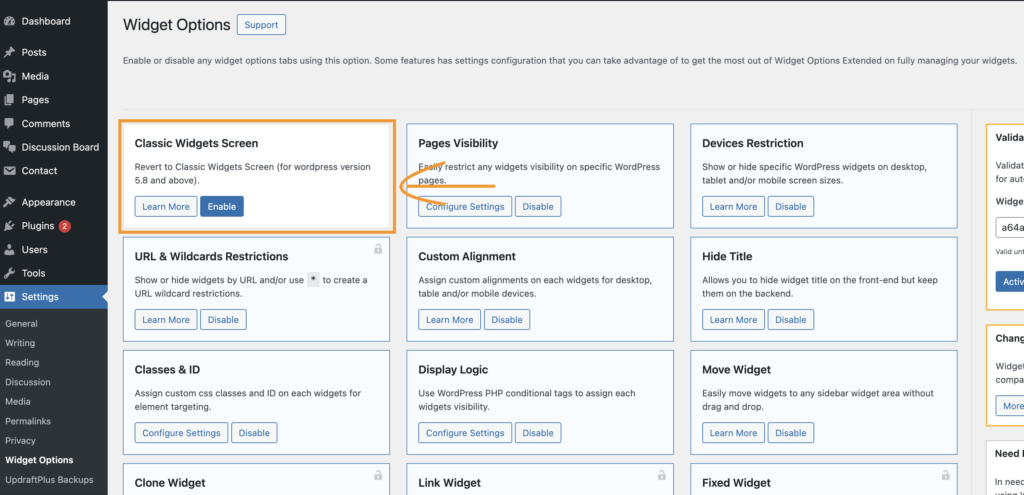
Simply make sure that the Classic Widget Screen from the Widget Options settings is disabled. And if you want to keep using Classic Widget Screen, simply enable it.
When you navigate to the Widgets page (Appearance > Widgets), the Block Widget Editor will load. From there, simply select a widget, and you’ll find the Widget Options feature settings readily located on the right side under the ‘Block’ tab.
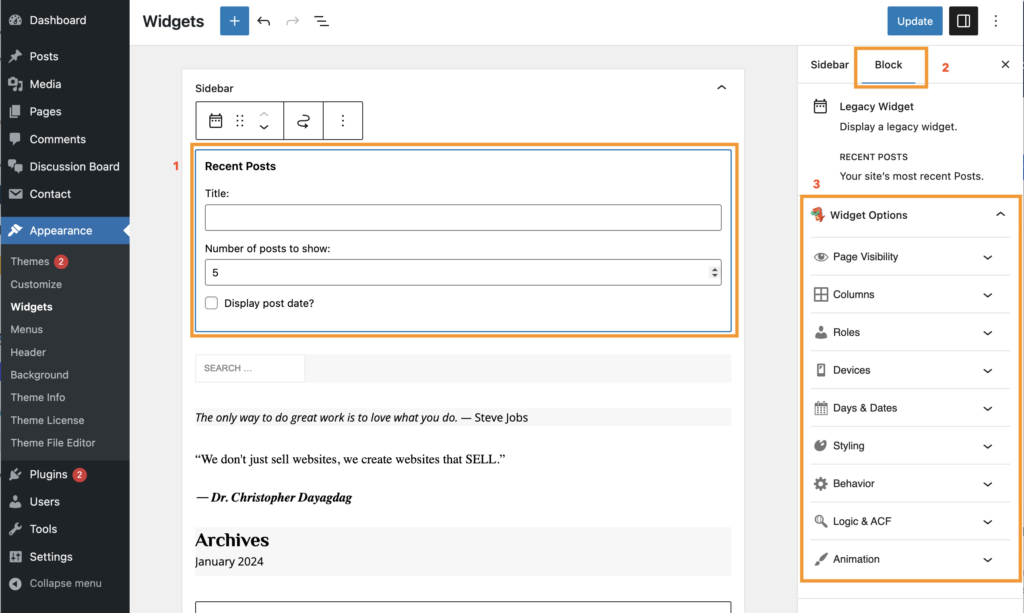
Widget Options on the Gutenberg Block Widget Editor is feature-packed with:
- Widget/Block Pages Visibility
- Defaults Pages
- Posts
- Custom Posts Type
- Taxonomies
- Author Pages
- Target URL
- Keyword Slug Filter
- Widget/Block Styling and Responsive Visibility
- Columns
- Devices Alignment & Restriction
- Widget Styling
- Forms Styling
- Animation
- Class & ID
- Widget/Block Conditional & Logical Visibility
- User roles
- Days & Dates Range (can even set date range without the year)
- Logic Display
- Advance Custom Field
- Widget/Block Behavioral Visibility
- Fixed Widget
- Link Widget
- Widget Cache
FAQs #
Why is my widget not displaying as expected?
Check whether other Widget Options settings are also active. For example, another visibility condition, device restriction, user role setting, or date setting may prevent the widget from appearing.
Try testing with only one setting enabled first.
Why does my widget appear on pages where I did not expect it to?
Make sure the page you are testing matches the selected WordPress page type. Some pages that look similar may be handled differently, such as regular pages, blog pages, category archives, or custom post type archives.
Also check whether other visibility conditions are affecting the result.
How should I test Widget Options settings?
For easier troubleshooting:
- Configure one setting.
- Save the widget.
- Test the result on the front end.
- Test in an incognito/private window if necessary.
- Add other settings only after confirming the first one works.
Why does the setting work differently when I am logged in?
Your logged-in user role or website caching may affect the result. Try testing while logged out or in an incognito/private browser window.
Does my theme affect Widget Options?
In some cases, yes. Your theme may affect widget styling, positioning, responsive layouts, or how widget areas are displayed.
If the configuration is correct but the appearance is unexpected, check whether theme or custom CSS is affecting the widget.
What should I include when reporting an issue?
Please provide:
- WordPress and Widget Options versions
- Active theme
- The affected widget or block
- The settings used
- Expected result
- Actual result
- Steps to reproduce the issue
- Screenshots, if available