
Widget Options allows you to manage widget visibility and other settings in both the WordPress block-based Widgets screen and the Classic Widget Editor.
If you prefer the traditional Widgets interface, you can enable the Classic Widgets Screen from the Widget Options settings. This guide explains how to switch between the Classic Widgets Screen and the block-based Widgets screen, upgrade from Widget Options Free to Widget Options Extended, and troubleshoot common issues.
How to use the Classic Widgets Screen #
To use the Classic Widgets Screen:
- Go to Dashboard > Settings > Widget Options.
- Enable Classic Widgets Screen.
- Go to Dashboard > Appearance > Widgets.
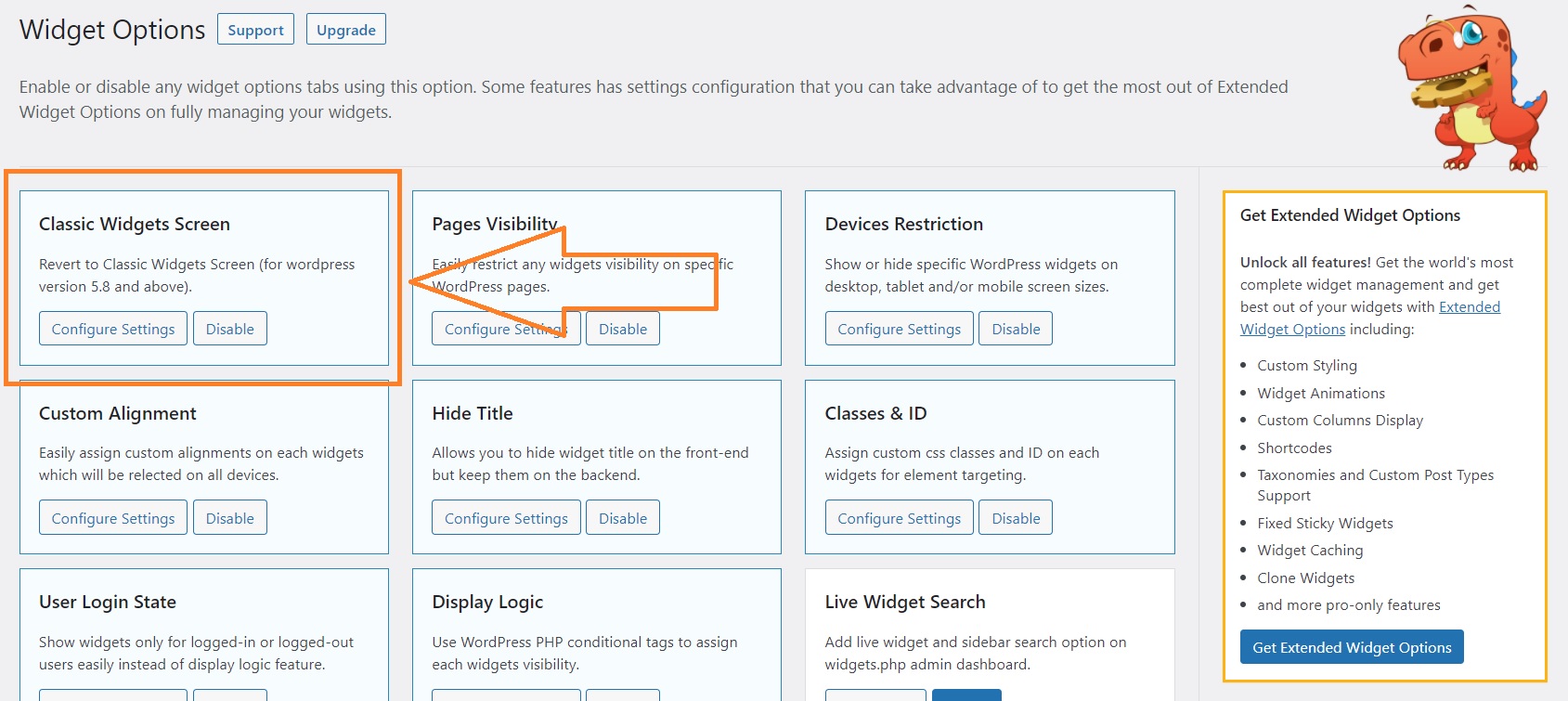
You can now manage your widgets using the Classic Widget Editor and access the available Widget Options settings.
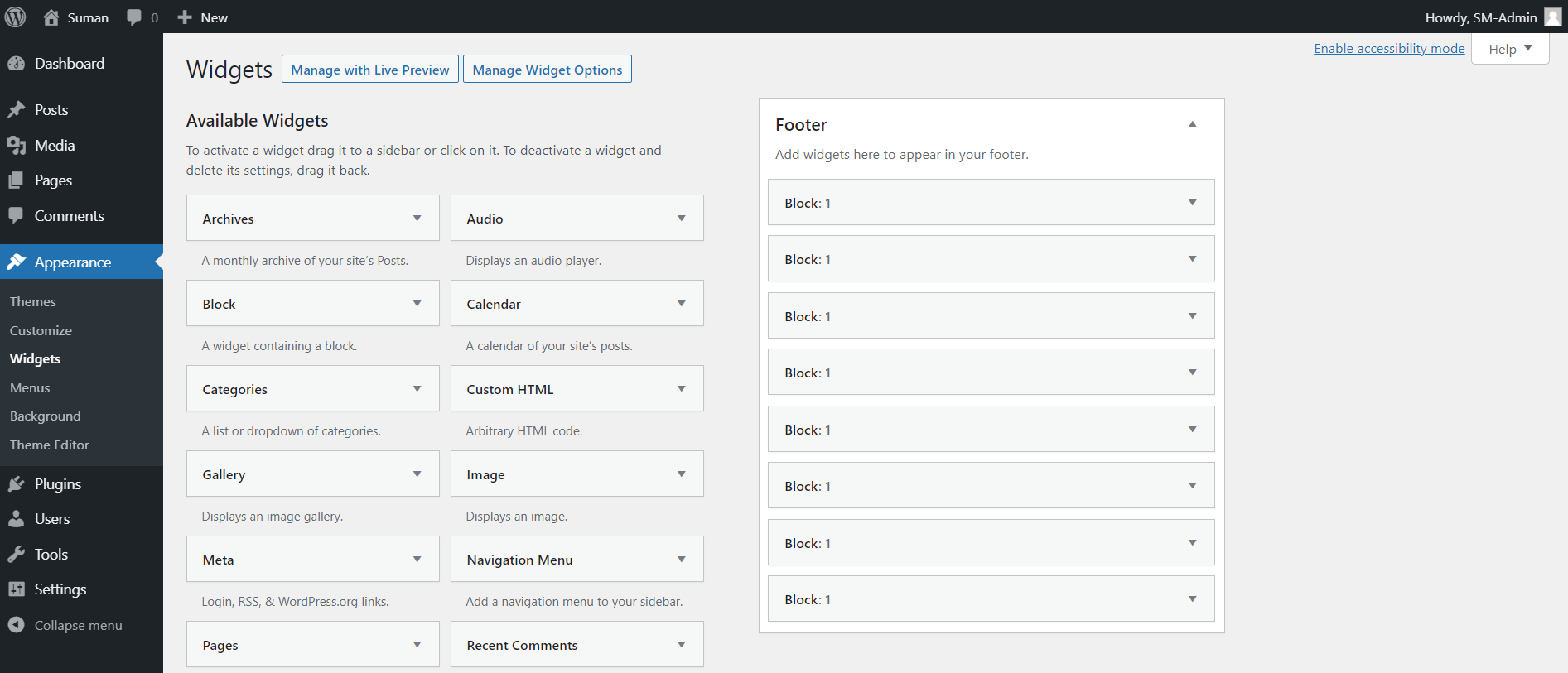
These steps apply to both Widget Options Free and Widget Options Extended.
How to switch back to the Block Widgets Screen #
If you want to use the WordPress block-based Widgets screen again:
- Go to Dashboard > Settings > Widget Options.
- Disable Classic Widgets Screen.
- Return to Dashboard > Appearance > Widgets.
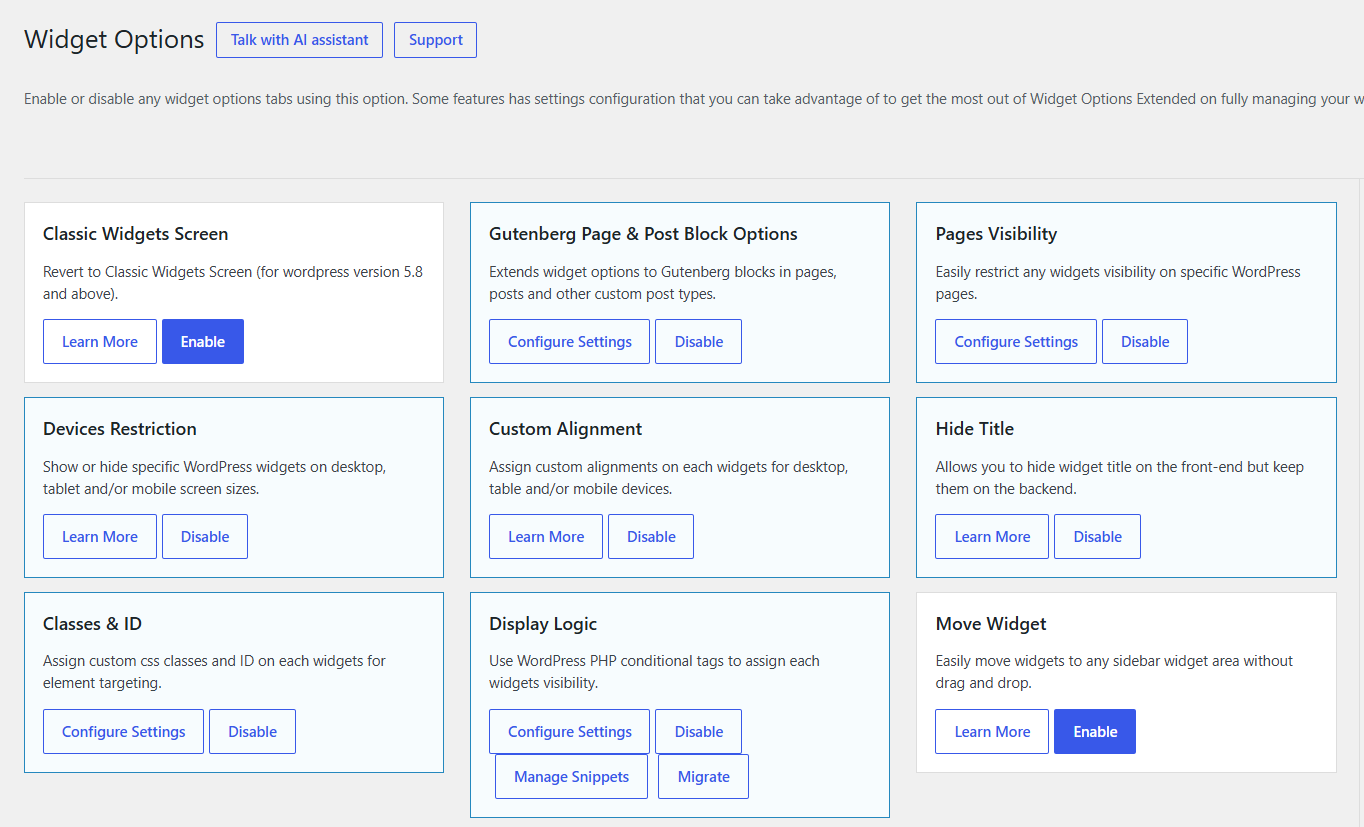
The block-based Widgets screen will be available again.
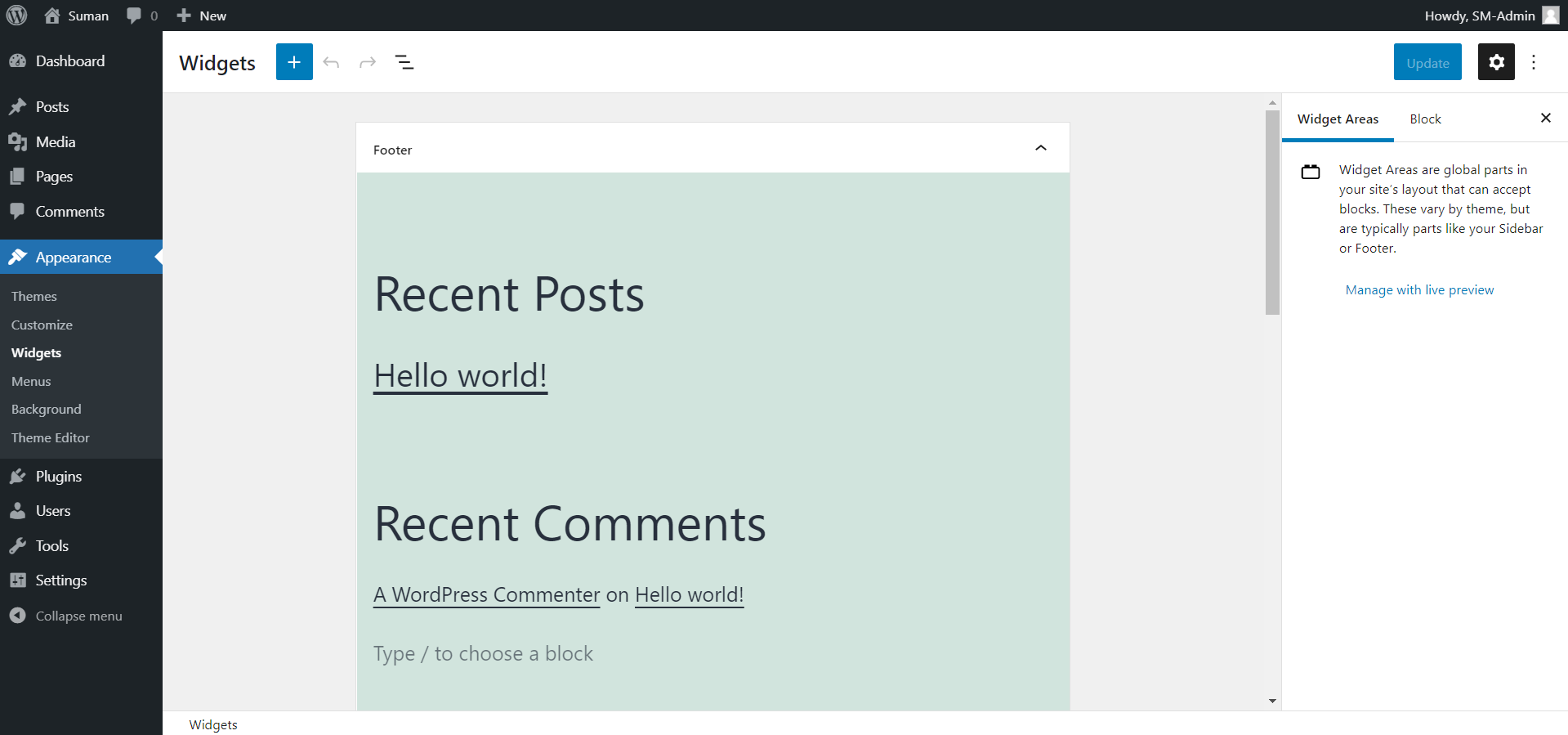
These steps apply to both Widget Options Free and Widget Options Extended.
Upgrading from Widget Options Free to Widget Options Extended #
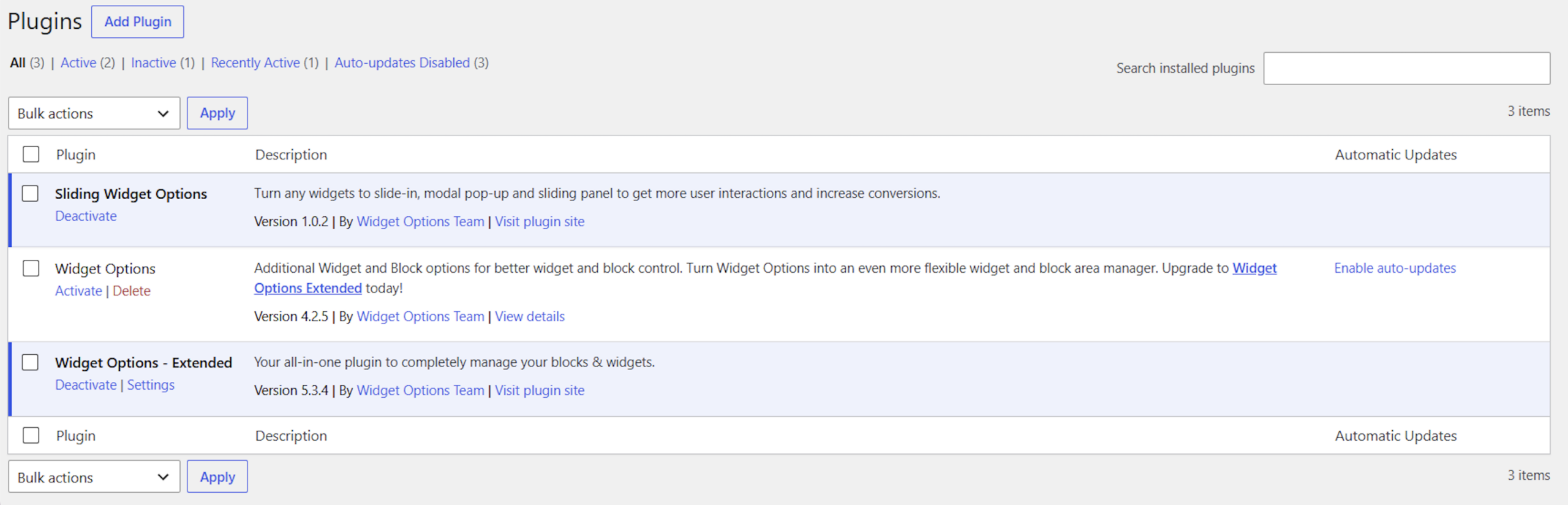
If you are upgrading from Widget Options Free to Widget Options Extended, deactivate Widget Options Free before activating Widget Options Extended.
Only one version of Widget Options should be active at a time. Do not keep Widget Options Free and Widget Options Extended active at the same time.
Your existing Widget Options settings remain stored and will still be available after activating Widget Options Extended. You should not need to configure your existing settings again after upgrading.
After upgrading, we recommend clearing all relevant caches:
- Your browser cache
- Any WordPress caching plugin cache
- Your hosting or server cache
Once the caches have been cleared, reload the WordPress admin area before checking the Widgets screen.
Using the Classic Widgets Screen after Upgrading to Extended #
After upgrading to Widget Options Extended, you can continue using the Classic Widgets Screen by following the steps above.
Go to Dashboard > Settings > Widget Options and enable Classic Widgets Screen, then go to Dashboard > Appearance > Widgets.
If you want to return to the block-based Widgets screen, disable Classic Widgets Screen from the same settings page.
Your existing Widget Options settings remain available after upgrading.
Troubleshooting #
Appearance > Widgets does not load or displays a block-related error #
If the Widgets screen fails to load or displays a block-related error, try the following steps:
- Clear your browser cache.
- Clear any WordPress caching plugin cache.
- Clear your hosting or server cache.
- Reload the WordPress admin area.
- Make sure that only one version of Widget Options is active.
- Open Appearance > Widgets again.
If the issue continues, go to Dashboard > Settings > Widget Options and enable Classic Widgets Screen.
Enabling Classic Widgets Screen can be used as a troubleshooting step or a temporary workaround if the block-based Widgets screen is not loading correctly.
Frequently Asked Questions #
Do I need to install the Classic Widgets plugin to use the Classic Widget Editor?
No. You can enable Classic Widgets Screen from Dashboard > Settings > Widget Options to use the Classic Widget Editor.
Will switching between the Classic Widgets Screen and the block-based Widgets screen affect my existing Widget Options settings?
No. Switching between the Classic Widgets Screen and the block-based Widgets screen does not remove your existing Widget Options settings.
Why am I still seeing the block-based Widgets screen after enabling Classic Widgets Screen?
Clear your browser, WordPress, and hosting or server caches, then reload the WordPress admin area. If the issue continues, check that the Classic Widgets Screen setting is enabled.