How do I create a shortcode for a widget?
1 min read
Updated on August 27, 2026
1 min read
Widget Options allows you to create and use shortcodes to display widgets and sidebars in other areas of your WordPress site.
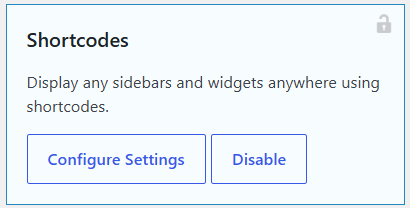
The Shortcode feature is available in Widget Options Extended. Start by installing and activating Widget Options Extended.
Once activated, go to Settings > Widget Options and enable the Shortcodes feature.

To create and copy a widget shortcode, you also need to use the Classic Widget Editor.
Note: The Shortcode option is not available in the Block Widget Editor, even when Widget Options Extended is active. Widgets added through the Block Widget Editor will not display a shortcode option.
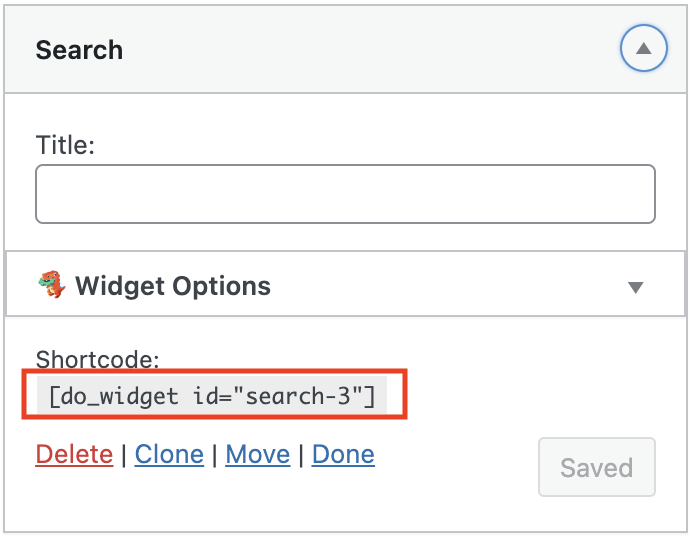
Go to the Classic Widget Editor and open the widget for which you want to create a shortcode.
Once the Shortcodes feature is enabled, the shortcode can be found at the bottom of the widget settings.

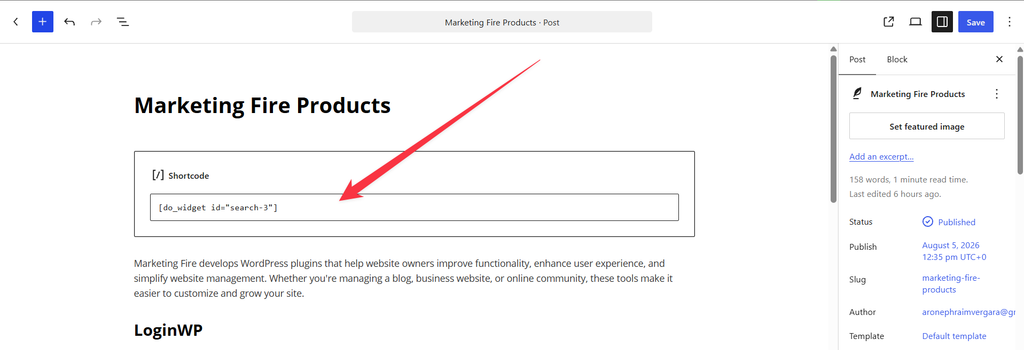
Paste the copied shortcode into the desired post, page, or custom post type where you want the widget to appear.

After adding the shortcode, preview or view the page on the front end to make sure the widget is displayed correctly.Â

If you are unsure which values to use, you can check the shortcode displayed below each widget when the feature is enabled.
[do_sidebar name="Primary" container="div" container_id="div_id" container_class="div_class"]
Shortcode Parameters
name : the name or id of the sidebar you want to display.
container : optional content container for all the contents.
container_id : optional container id if you have container value.
container_class : optional container class if you have container value.
[do_widget id="widget-id" container="div" container_id="div_id" container_class="div_class"]
Shortcode Parameters
id : the id of the widget you want to display.
container : optional content container for the widget.
container_id : optional container id if you have container value.
container_class : optional container class if you have container value.
Can I use the same widget shortcode in multiple places?
Yes. You can use the same shortcode wherever you want to display the same widget.
What happens if I delete the widget?
If the widget is deleted, the shortcode will no longer be able to display it. You will need to update the shortcode if you want to display a different widget.
Will changes to the widget appear everywhere the shortcode is used?
Yes. Changes made to the widget are reflected in every location where its shortcode is used.
Why is my widget not displaying?
Make sure the widget still exists and that you are using the correct shortcode. If the widget was deleted or its ID changed, copy the current shortcode again and update it where it is being used.
We use cookies to improve your experience on our site. By using our site, you consent to cookies.
Manage your cookie preferences below:
Essential cookies enable basic functions and are necessary for the proper function of the website.
These cookies are needed for adding comments on this website.
These cookies are used for managing login functionality on this website.
Statistics cookies collect information anonymously. This information helps us understand how visitors use our website.
Google reCAPTCHA helps protect websites from spam and abuse by verifying user interactions through challenges.
You can find more information in our Cookie Policy and Privacy Statement.